Join a Server
Connect to an OrOrbit server and start chatting in under 2 minutes.
Someone invited you to their OrOrbit server? Here’s how to get in.
What You’ll Need
- The server address (URL) from whoever invited you — it looks something like
chat.example.comor203.0.113.45 - An invite link if the server is invite-only (most are)
- The OrOrbit app — download it here
🤔 What's an OrOrbit server?
OrOrbit is self-hosted — each community runs on someone’s own hardware instead of a central service. When you join a server, you’re connecting directly to that person’s machine. Your messages stay on their server, not ours.
Connect to the Server
Open the OrOrbit App
If you don’t have it yet, grab the OrOrbit app from the download page.
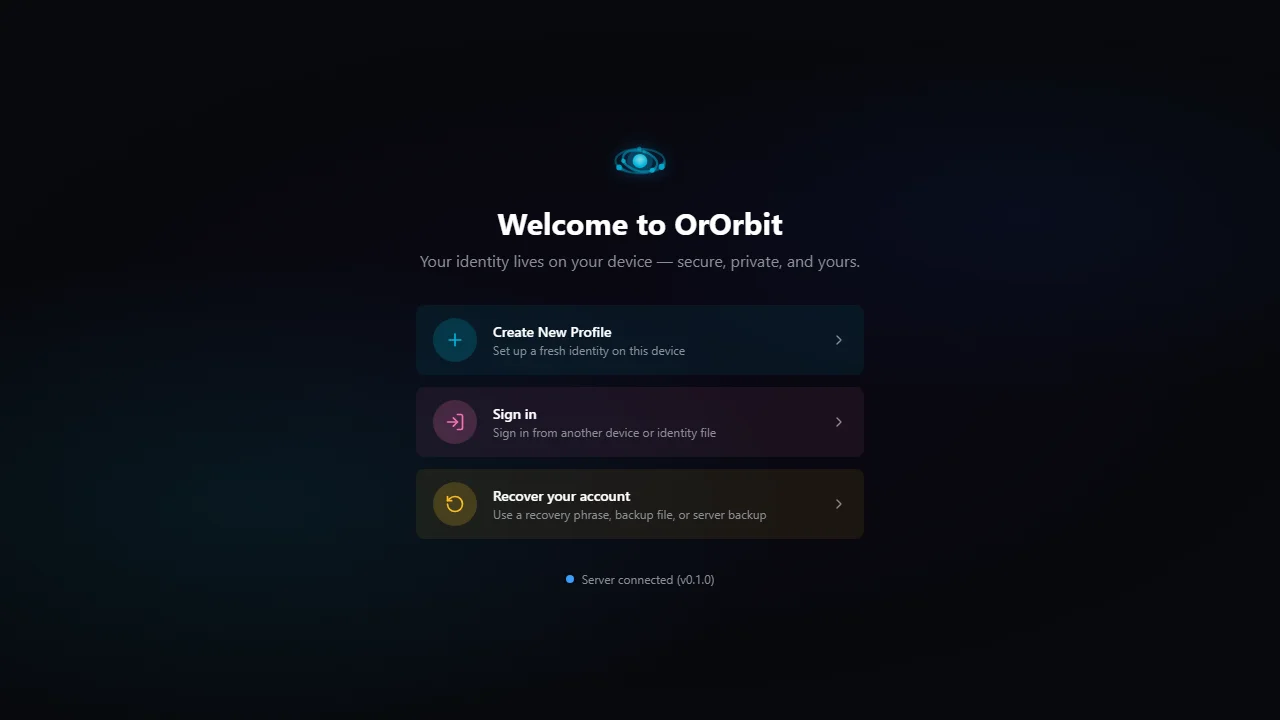
When you first open the app, you’ll see the Connect to a Server screen. If you’ve already connected to other servers, click the + button in the server sidebar.
Enter the Server Address
Type or paste the server address into the input field and click Connect.
ℹ️ HTTPS is automatic
If you enter a plain domain like chat.example.com, the app automatically tries HTTPS first.
You don’t need to type https:// unless the address uses a non-standard port.
The app will connect and show you the server’s sign-in screen.
Create Your Account
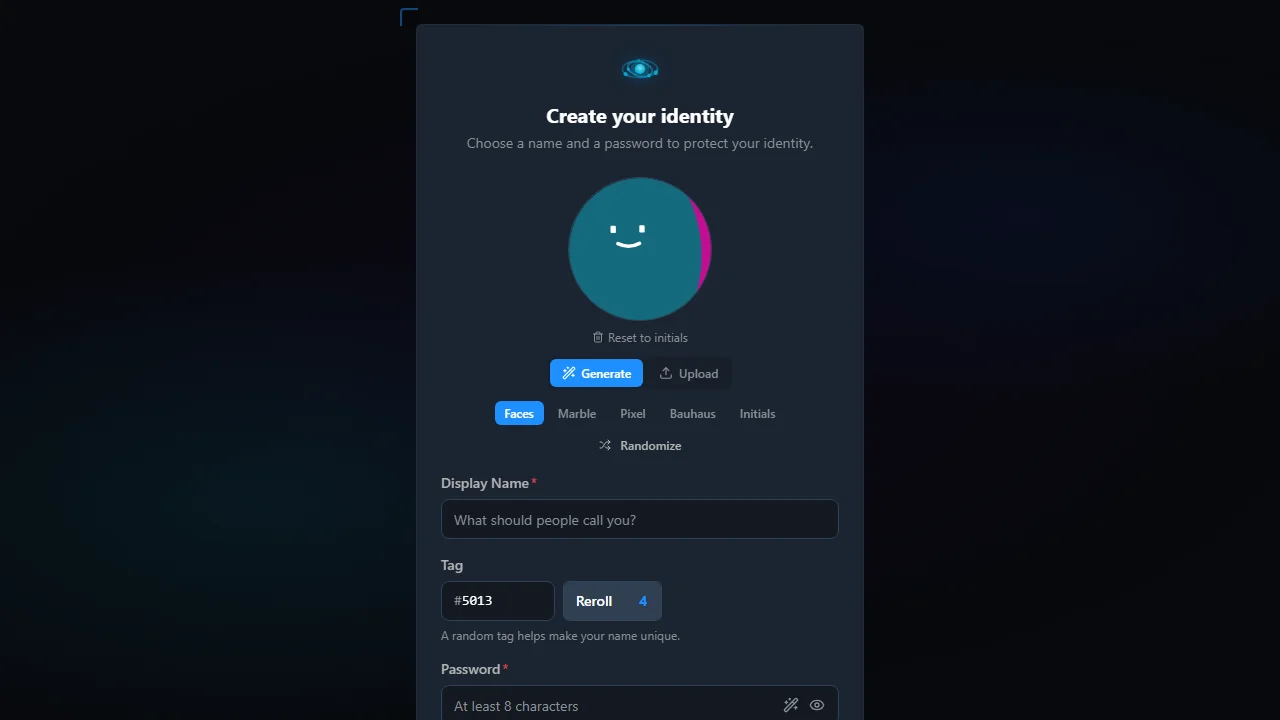
If this is your first time on this server, you’ll create a new account:
- Choose a username and password
- Set up your profile (display name, avatar)
If the server is invite-only, you’ll need to enter or click the invite link the server admin shared with you.
⚙ One identity per server
OrOrbit uses local-first identity — your account on each server is independent. Your username, avatar, and credentials are unique to each server you join. This means no one can track you across servers.
You’re In
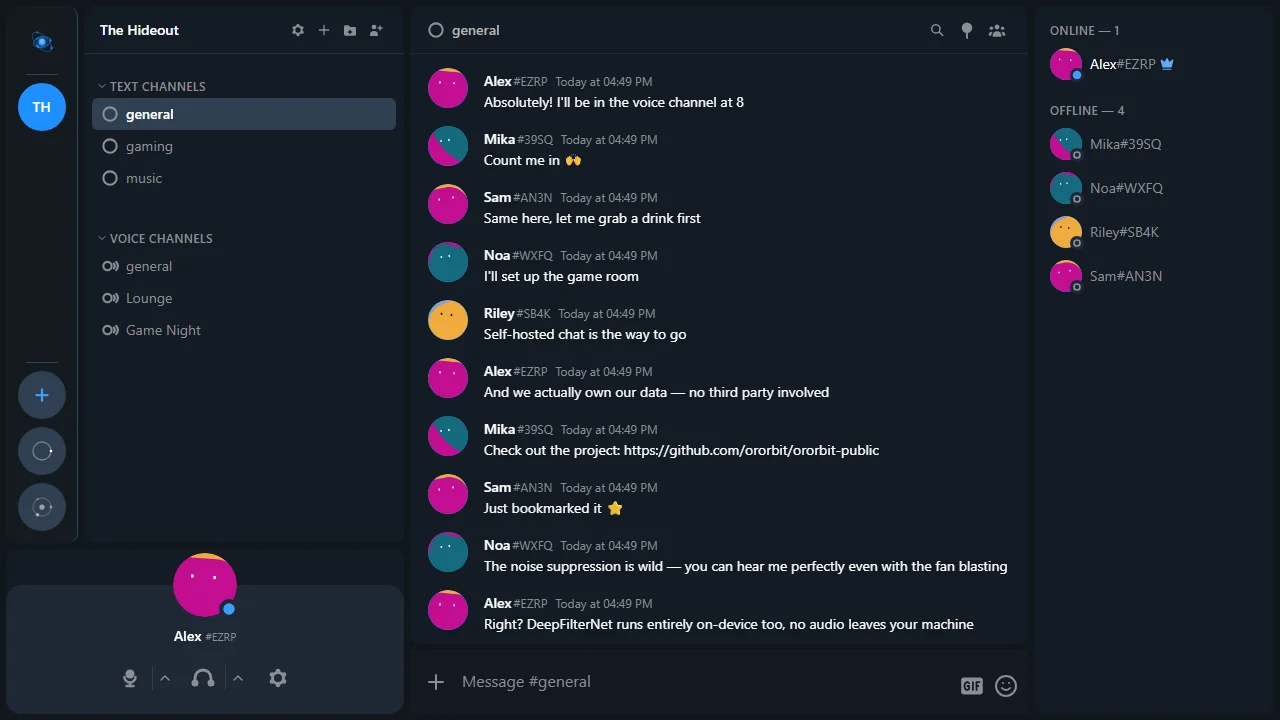
Once signed in, you’ll see the server’s circles (communities) and channels. Jump into a channel and start chatting.
If you don’t see any circles yet, the server admin may need to invite you to one, or you can create your own if the server allows it.
Troubleshooting
”Connection failed” or timeout
- Double-check the server address for typos
- Make sure the server is online — ask the person who invited you
- If the address is an IP with a non-standard port (like
192.168.1.50:4113), make sure you include the port - Try adding
http://orhttps://explicitly
”Invite required” error
The server is set to invite-only. Ask the server admin for an invite link. Paste it in your browser — it will open the OrOrbit app and register you automatically.
Can’t connect from outside the local network
If the server is running on someone’s home network, they may need to set up port forwarding or a tunnel. Point them to the Custom Domain Setup guide or Public Access guide.
What's next?
Set Up Your Server